Token Management
This guide covers managing withering tokens through the Admin UI.
Overview
Tokens provide time-limited access to the proxy. The Admin UI allows you to:
- Generate new tokens with custom settings
- View token details and usage
- Revoke tokens individually or in bulk
- Monitor cache statistics per token
Viewing Tokens
Tokens List
Navigate to Tokens in the sidebar or access tokens from a project’s detail page.
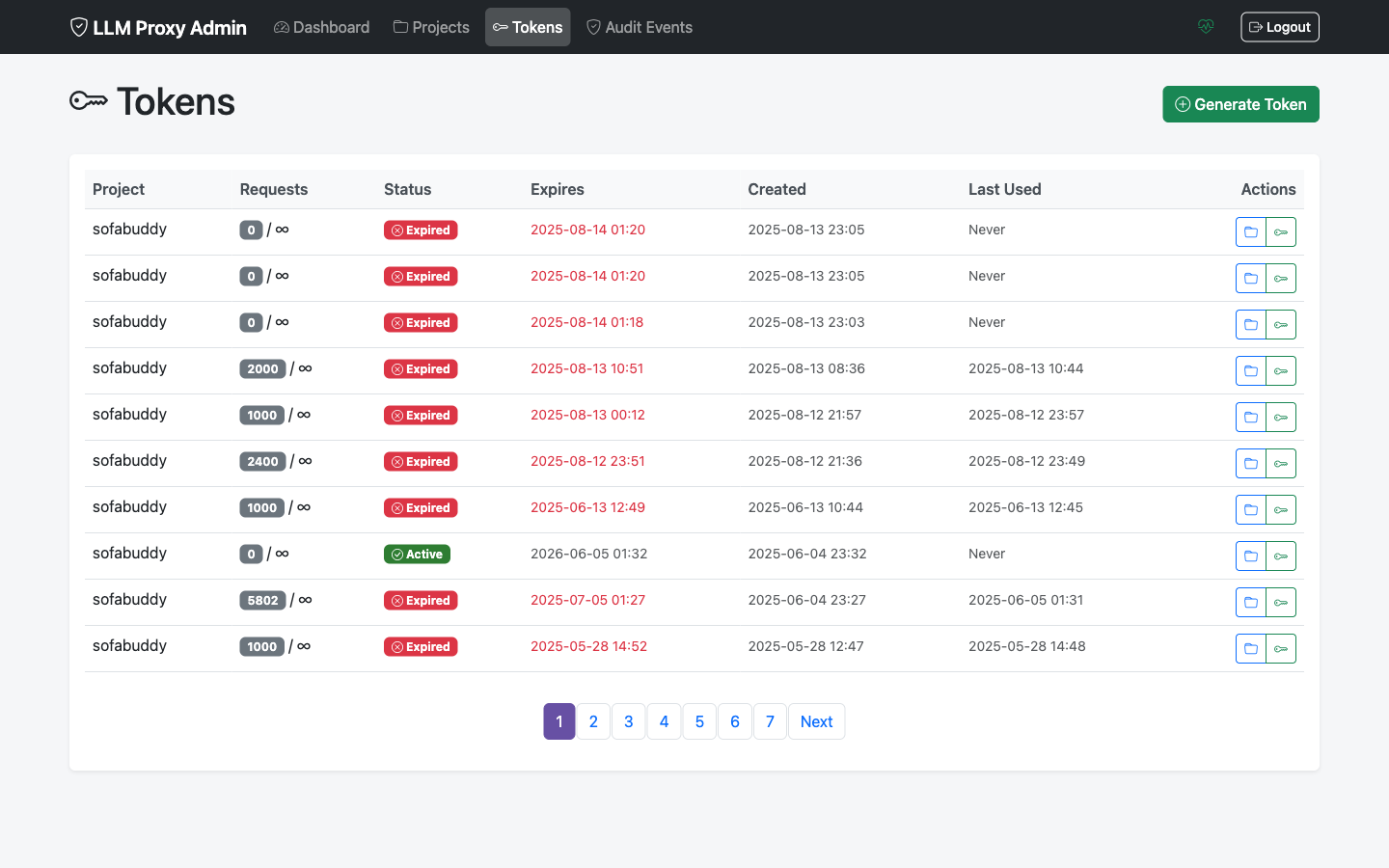
The tokens list shows:
| Column | Description |
|---|---|
| ID | Truncated token identifier |
| Project | Parent project name |
| Status | Active, Expired, or Revoked |
| Created | Creation timestamp |
| Expires | Expiration timestamp |
| Requests | Usage count (used/limit) |
| Cached | Cache hit count |
| Actions | View, Revoke |
Token Status Indicators
| Status | Indicator | Meaning |
|---|---|---|
| Active | 🟢 Green | Token is valid and usable |
| Expired | 🟠 Orange | Token has passed expiration time |
| Revoked | 🔴 Red | Token was manually deactivated |
| Rate Limited | 🟡 Yellow | Request limit reached |
Filtering Tokens
Filter the token list by:
- Project: Show tokens for a specific project
- Status: Active, Expired, Revoked, or All
- Search: Find by token ID
Generating a Token
Step 1: Access Token Generation
Either:
- Click Generate Token from the Tokens page
- Click Generate Token from a project’s detail page
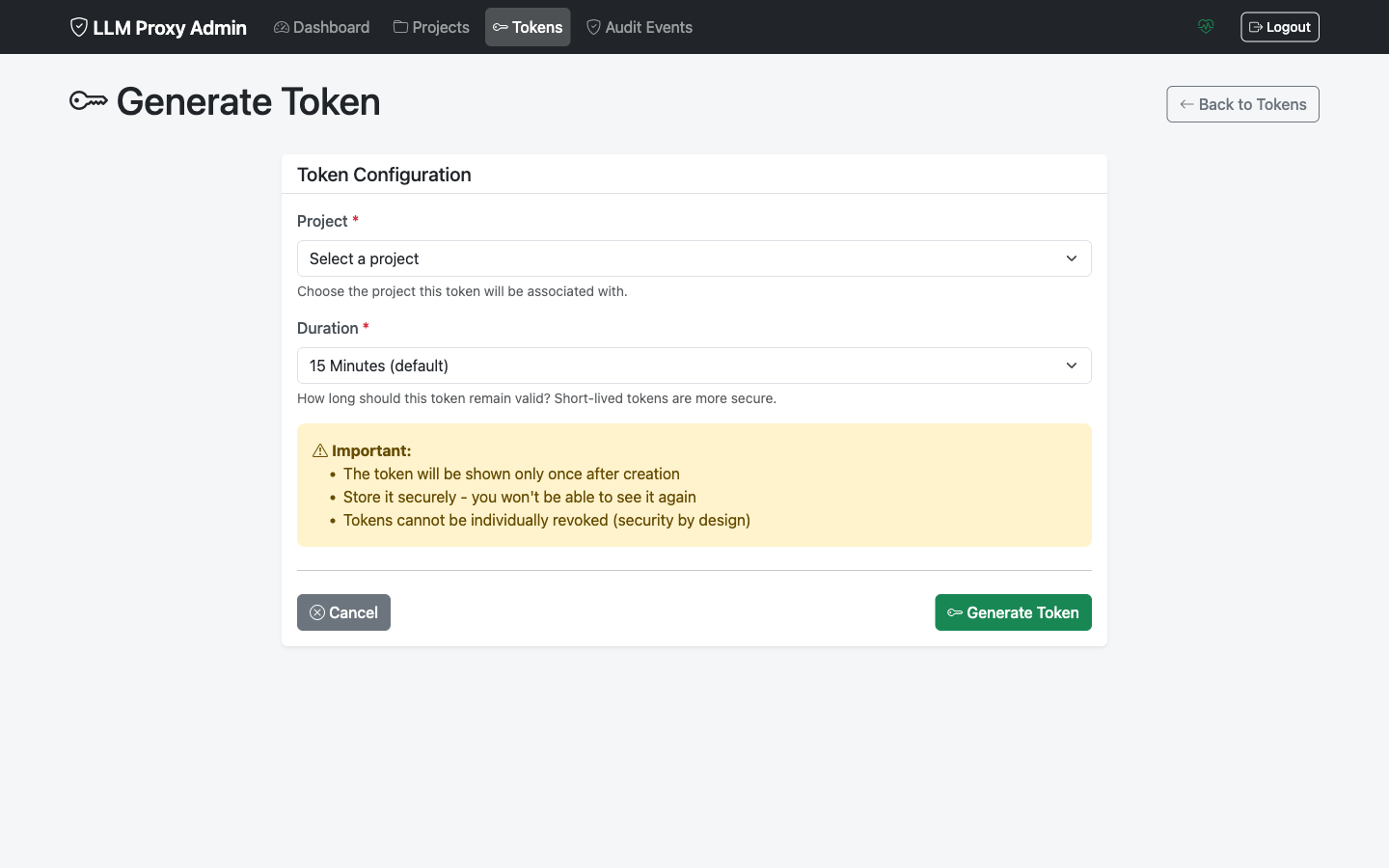
Step 2: Configure Token Settings
| Setting | Required | Description |
|---|---|---|
| Project | Yes | Select the parent project |
| Duration (hours) | Yes | Token lifetime (default: 24) |
| Max Requests | No | Request limit (0 = unlimited) |
Duration Recommendations
| Use Case | Duration |
|---|---|
| One-time testing | 1-4 hours |
| Development session | 24 hours |
| CI/CD pipeline | 4-8 hours |
| Weekly batch job | 168 hours (7 days) |
| Long-running service | 720 hours (30 days) |
Step 3: Generate
Click Generate Token. The new token is displayed.
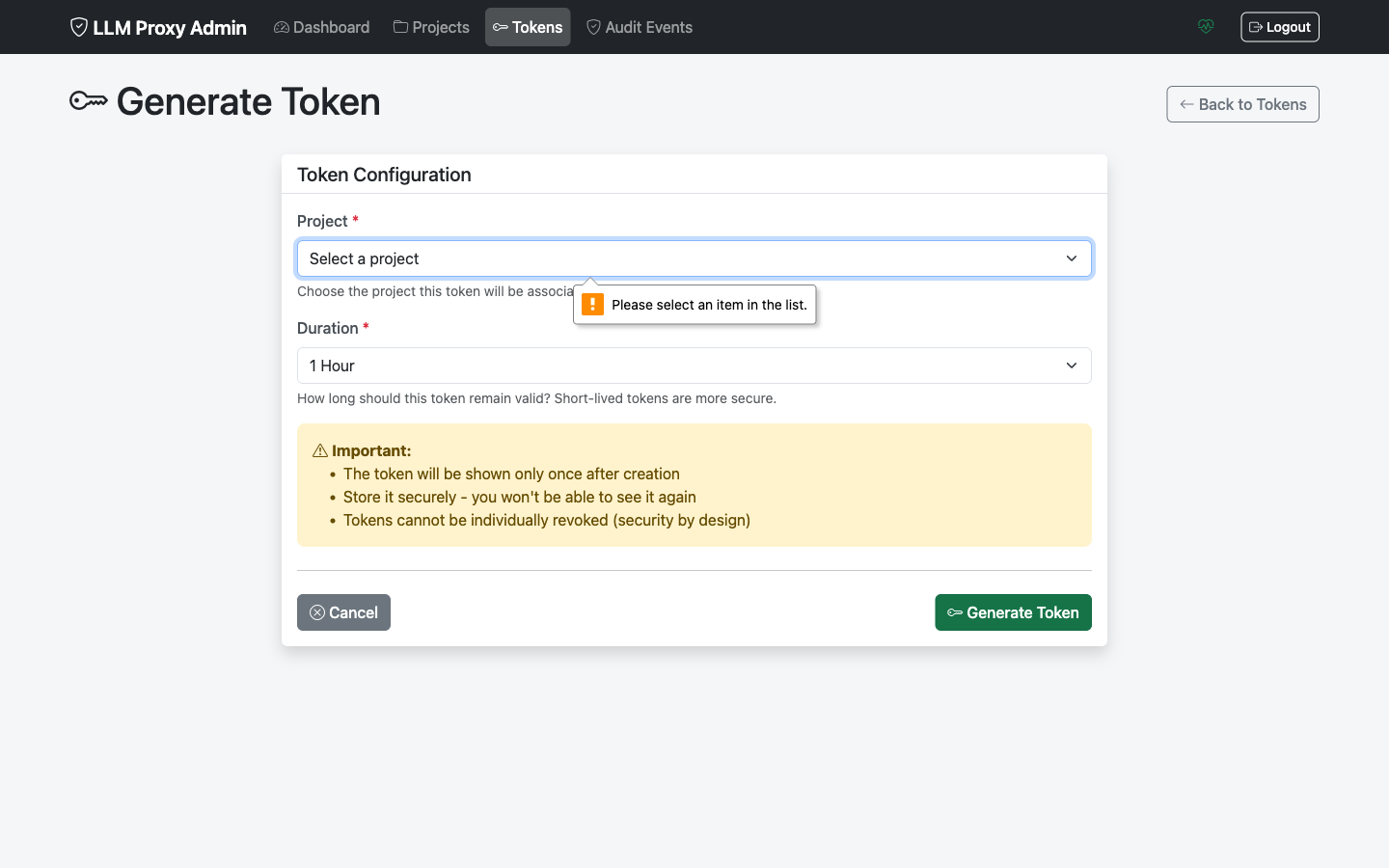
Important: Copy the token immediately! It is only shown once.
Token Format
Generated tokens follow this format:
sk-wt-xxxxxxxxxxxxxxxxxxxxxxxxxxxx
sk-wt-prefix indicates a withering token- Followed by random alphanumeric characters
Viewing Token Details
Click on a token ID to view its details:
- Basic Information
- Token ID
- Project
- Created date
- Expiration date
- Status
- Usage Statistics
- Request count
- Request limit
- Cache hit count
- Remaining requests
- Timestamps
- Created at
- Last used at
- Expires at
Token Usage Metrics
The Admin UI displays key usage metrics:
| Metric | Description |
|---|---|
| REQUESTS | Total requests made with this token |
| CACHED | Requests served from cache |
| UPSTREAM | Requests forwarded to OpenAI |
| LIMIT | Max requests (∞ if unlimited) |
| REMAINING | Requests until limit reached |
Understanding Cache Statistics
- High cache hit rate: Good! Requests are being served quickly from cache
- Low cache hit rate: Normal for unique prompts; each unique request creates a separate cache entry
Revoking Tokens
Revoke Individual Token
- Navigate to the token in the list
- Click the Revoke action button
- Confirm the revocation
The token immediately becomes unusable.
Revoke from Project Page
- Go to the project detail page
- Find the token in the tokens list
- Click Revoke
Bulk Revocation
To revoke all tokens for a project:
- Go to the project detail page
- Click Revoke All Tokens
- Confirm the action
Warning: Bulk revocation affects all tokens immediately and cannot be undone.
When to Revoke Tokens
- Token is compromised
- User/service no longer needs access
- Rotating all credentials
- Responding to security incidents
- End of temporary access period
Token States Explained
Active Tokens
- Within expiration time
- Under request limit
- Parent project is active
- Not manually revoked
Expired Tokens
- Expiration time has passed
- Cannot be reactivated
- Generate new token instead
Revoked Tokens
- Manually deactivated via Admin UI or API
- Can potentially be reactivated via API (use PATCH)
- Shown in list for audit purposes
Rate Limited Tokens
- Active but reached max_requests limit
- Cannot be used until limit is reset
- Generate new token or increase limit
Managing Token Lists
Sort Options
Click column headers to sort by:
- Created date
- Expiration date
- Request count
- Status
Bulk Actions
Select multiple tokens to:
- Export token list (CSV)
- Bulk revoke (with confirmation)
Common Workflows
Generate Short-Lived Token for Testing
- Go to project
- Generate Token
- Set duration to 1-4 hours
- Copy token for testing
- Token auto-expires
Set Up Service Account Token
- Generate token with longer duration (168-720 hours)
- Set appropriate request limit
- Store securely in service configuration
- Monitor usage in Admin UI
Rotate Tokens
- Generate new token before old expires
- Update application with new token
- Verify new token works
- Revoke old token
Emergency Token Revocation
If a token is compromised:
- Immediately revoke the specific token
- Check audit logs for unauthorized usage
- Generate replacement token
- Update legitimate users
Monitoring Best Practices
Regular Checks
- Review active tokens weekly
- Check for unused tokens (no recent requests)
- Monitor tokens approaching expiration
- Review tokens near request limits
Audit Log Review
Check audit logs for:
- Unexpected token creation
- Unusual usage patterns
- Failed authentication attempts
- Bulk revocation events
Troubleshooting
Token Not Working
Check:
- Is token status Active?
- Has token expired?
- Has request limit been reached?
- Is parent project active?
Solution: Generate a new token if any check fails.
Cannot Generate Token
Error: “Cannot generate tokens for inactive project”
Solution: Activate the project first, then generate token.
Token Expired Too Soon
Check: The duration setting at generation time.
Prevention: Use longer duration for services that need persistent access.
High Request Count
Monitor: Compare request_count to max_requests.
Action: Generate new token with higher limit if needed.