Project Management
This guide covers managing projects through the Admin UI.
Overview
Projects are the foundation of access control in LLM Proxy. Each project:
- Has a unique OpenAI API key
- Can have multiple tokens
- Can be activated or deactivated
- Maintains an audit trail
Viewing Projects
Projects List
Navigate to Projects in the sidebar to see all projects.
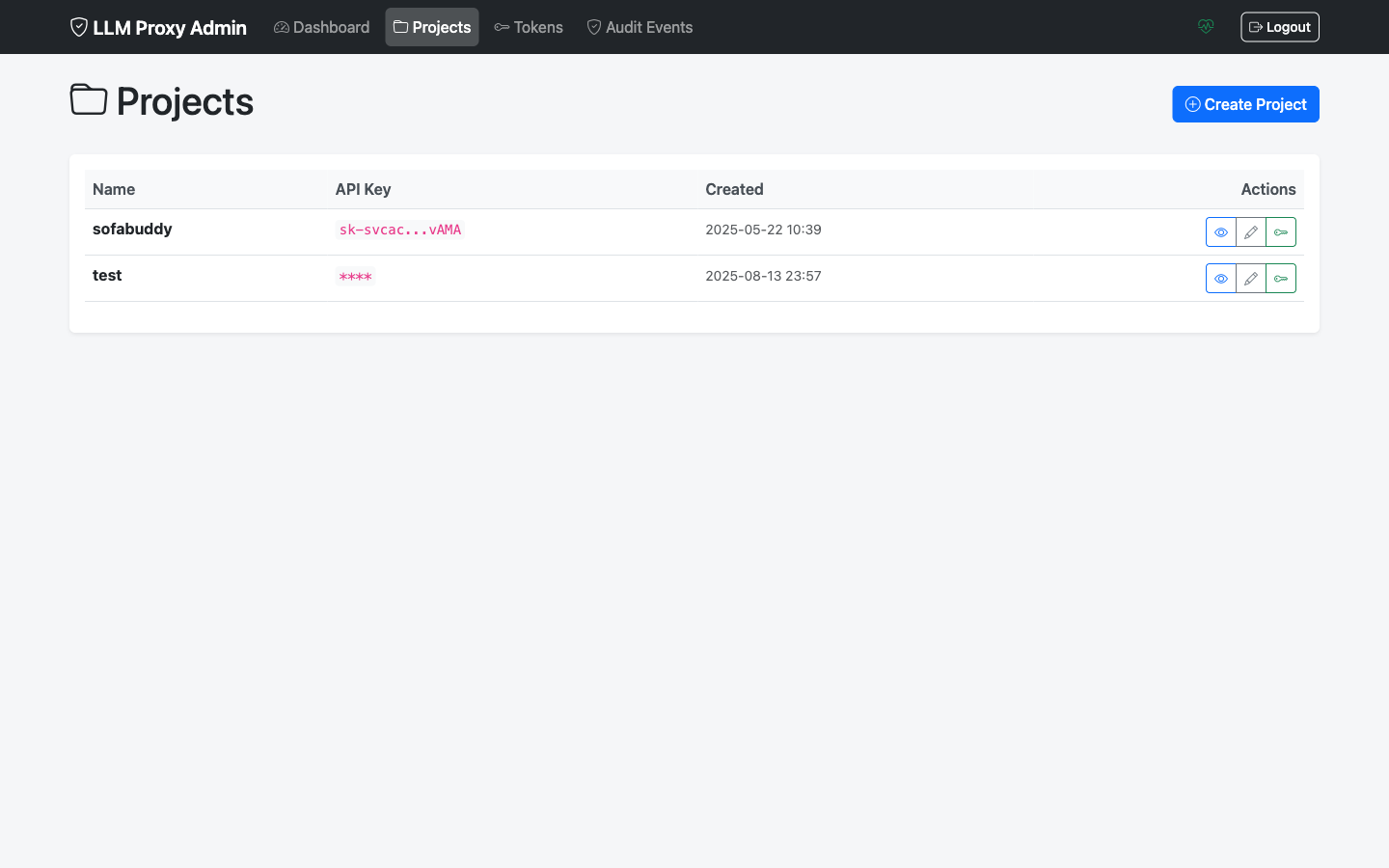
The list shows:
- Name: Project identifier
- Status: Active or Inactive
- Created: Creation date
- Tokens: Number of associated tokens
- Actions: Edit, activate/deactivate
Filtering Projects
Use the filter options to find specific projects:
- Search by name
- Filter by status (active/inactive)
Creating a Project
Step 1: Open Create Dialog
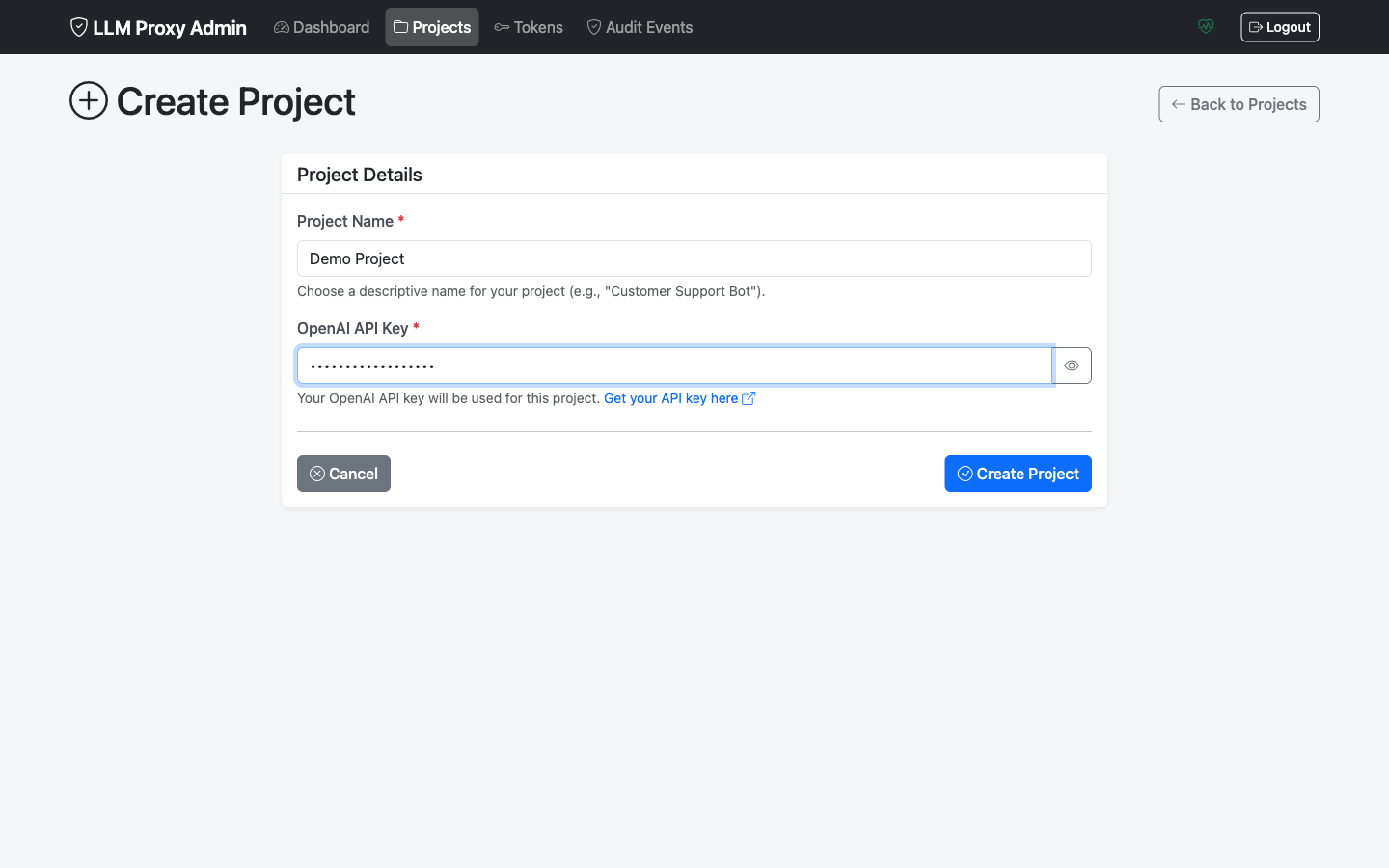
Click the New Project button on the Projects page.

Step 2: Enter Project Details
Fill in the required information:
| Field | Required | Description |
|---|---|---|
| Name | Yes | A descriptive name for the project |
| OpenAI API Key | Yes | Your OpenAI API key (sk-…) |
Step 3: Submit
Click Create Project. The project is created as Active by default.
Best Practices for Project Organization
- Use descriptive names (e.g., “Production API”, “Development Team”)
- Create separate projects for different environments
- Create separate projects for different API key access levels
Viewing Project Details
Click on a project name to view its details.
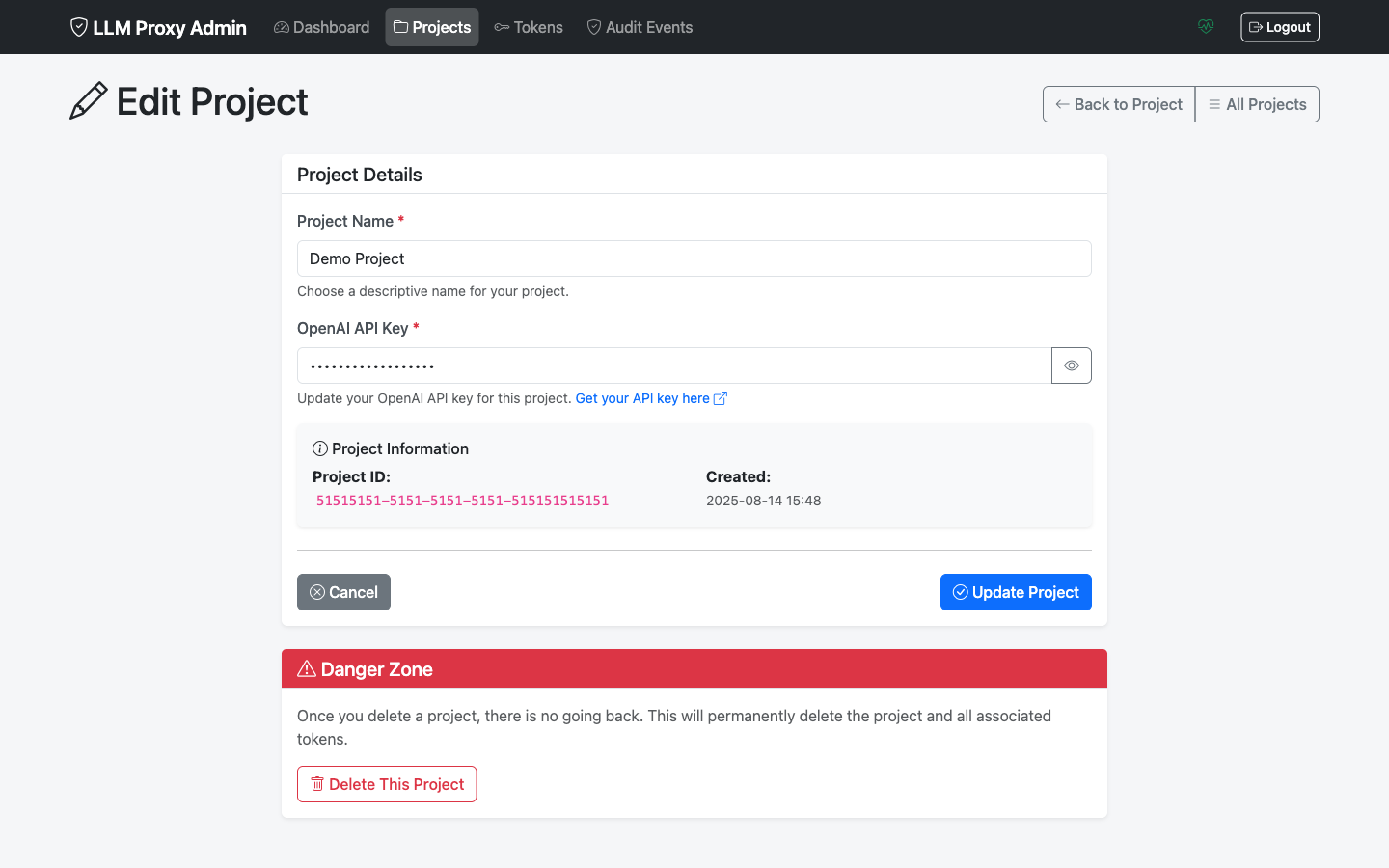
The detail view shows:
- Project Information
- ID
- Name
- Status
- Created date
-
API Key (partially masked for security)
- Tokens
- Total count
- Active count
- Recent tokens list
- Actions
- Edit project
- Generate token
- Activate/Deactivate
- Bulk revoke tokens
Editing a Project
Update Name or API Key
- Navigate to the project detail page
- Click Edit Project
- Modify the name or API key
- Click Save Changes
Update API Key
When rotating your OpenAI API key:
- Edit the project
- Enter the new API key
- Save changes
Note: Existing tokens continue to work with the new API key. No token regeneration needed.
Activating and Deactivating Projects
Deactivate a Project
Deactivating a project:
- Blocks all API requests using project tokens
- Prevents new token generation
- Does NOT revoke existing tokens
To deactivate:
- Go to project details
- Click Deactivate Project
- Confirm the action
Use cases:
- Temporarily suspend access
- Rotate API keys safely
- Investigate security concerns
Reactivate a Project
To reactivate:
- Go to project details
- Click Activate Project
- Confirm the action
Existing tokens become usable again (if not expired or revoked).
Bulk Token Operations
Revoke All Project Tokens
To revoke all tokens for a project:
- Go to project details
- Click Revoke All Tokens
- Confirm the action
This is useful when:
- Rotating API keys with full token reset
- Security incident response
- Project decommissioning
Warning: This action cannot be undone. All tokens will be immediately unusable.
Project Lifecycle
┌─────────────┐     ┌─────────────┐     ┌─────────────┐
│   Create    │────>│   Active    │<───>│  Inactive   │
│             │     │             │     │             │
└─────────────┘     └─────────────┘     └─────────────┘
                          │
                          │ Cannot Delete
                          │ (405 Error)
                          ▼
                    ┌─────────────┐
                    │  Preserved  │
                    │ for Audit   │
                    └─────────────┘
Why Projects Cannot Be Deleted
Projects cannot be deleted (returns 405 Method Not Allowed) for:
- Audit Trail Integrity: Maintains complete history
- Data Safety: Prevents accidental loss
- Token History: Preserves usage records
- Reactivation Option: Allows recovery
Instead of deletion:
- Deactivate the project
- Revoke all tokens
- The project remains but is fully disabled
Common Workflows
Set Up a New API Integration
- Create a new project with descriptive name
- Enter your OpenAI API key
- Generate a token with appropriate duration
- Provide token to the integration
Rotate API Key
- Obtain new API key from OpenAI
- Edit the project
- Update the API key
- Save changes
No token changes needed - existing tokens work with new key.
Decommission a Project
- Deactivate the project
- Revoke all tokens
- Confirm all integrations have migrated
- Project remains inactive for audit
Respond to Security Incident
If a project’s API key is compromised:
- Immediately deactivate the project
- Revoke all project tokens
- Rotate the OpenAI API key in OpenAI dashboard
- Update project with new API key
- Reactivate project
- Generate new tokens for legitimate users
Troubleshooting
Cannot Create Project
Error: “Invalid API key format”
Solution: Ensure the API key starts with sk- and is complete.
Cannot Generate Tokens
Error: “Cannot generate tokens for inactive project”
Solution: Activate the project first.
Project Status Shows Inactive
Check:
- Was the project recently deactivated?
- View the audit log for status changes
- Reactivate if needed