Admin UI Screenshots
This page provides a visual tour of all Admin UI screens.
Authentication
Login
The login screen prompts for your management token.
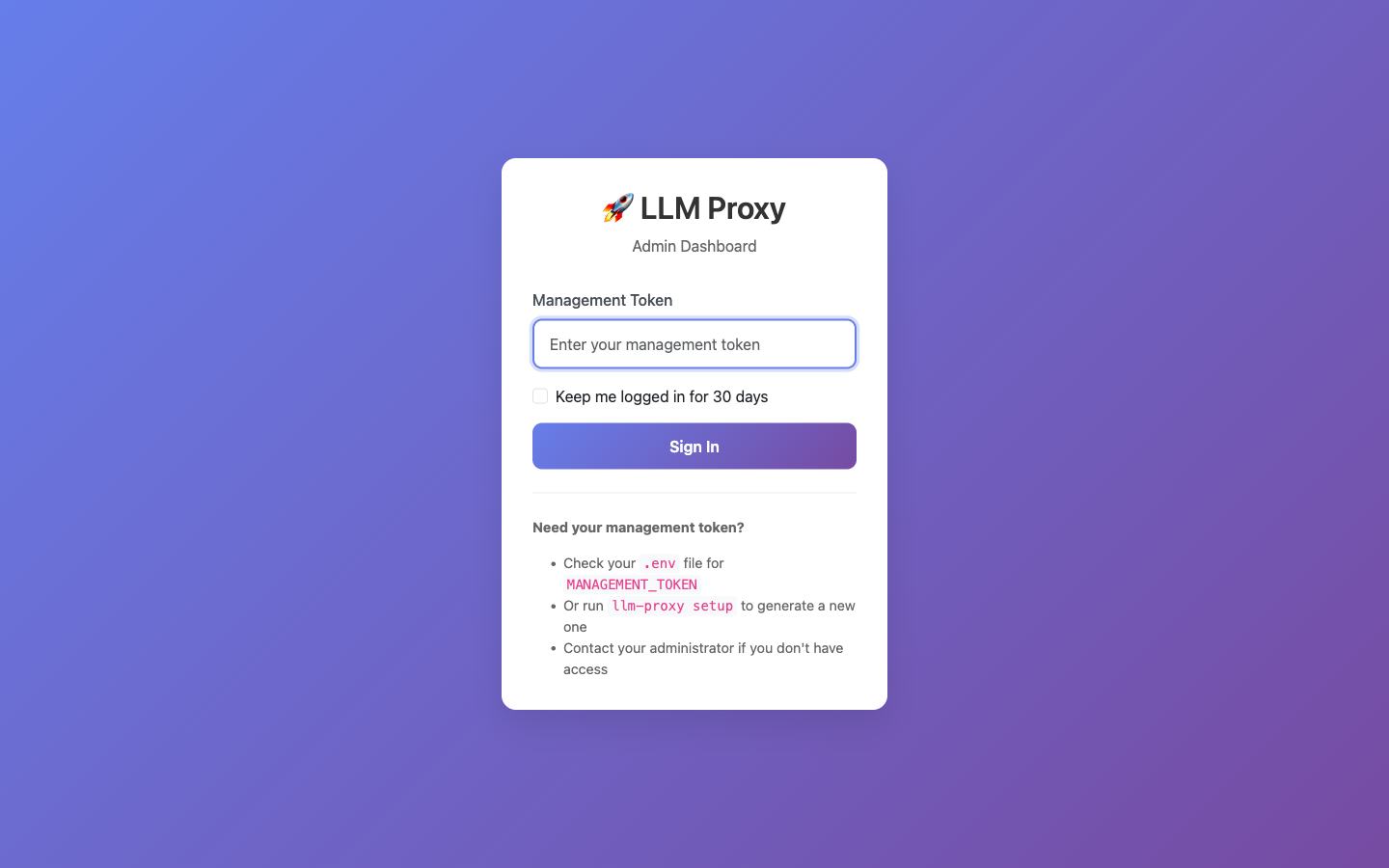
To log in:
- Enter your
MANAGEMENT_TOKEN - Click Login
Dashboard
Main Dashboard
The dashboard shows an overview of your LLM Proxy deployment.
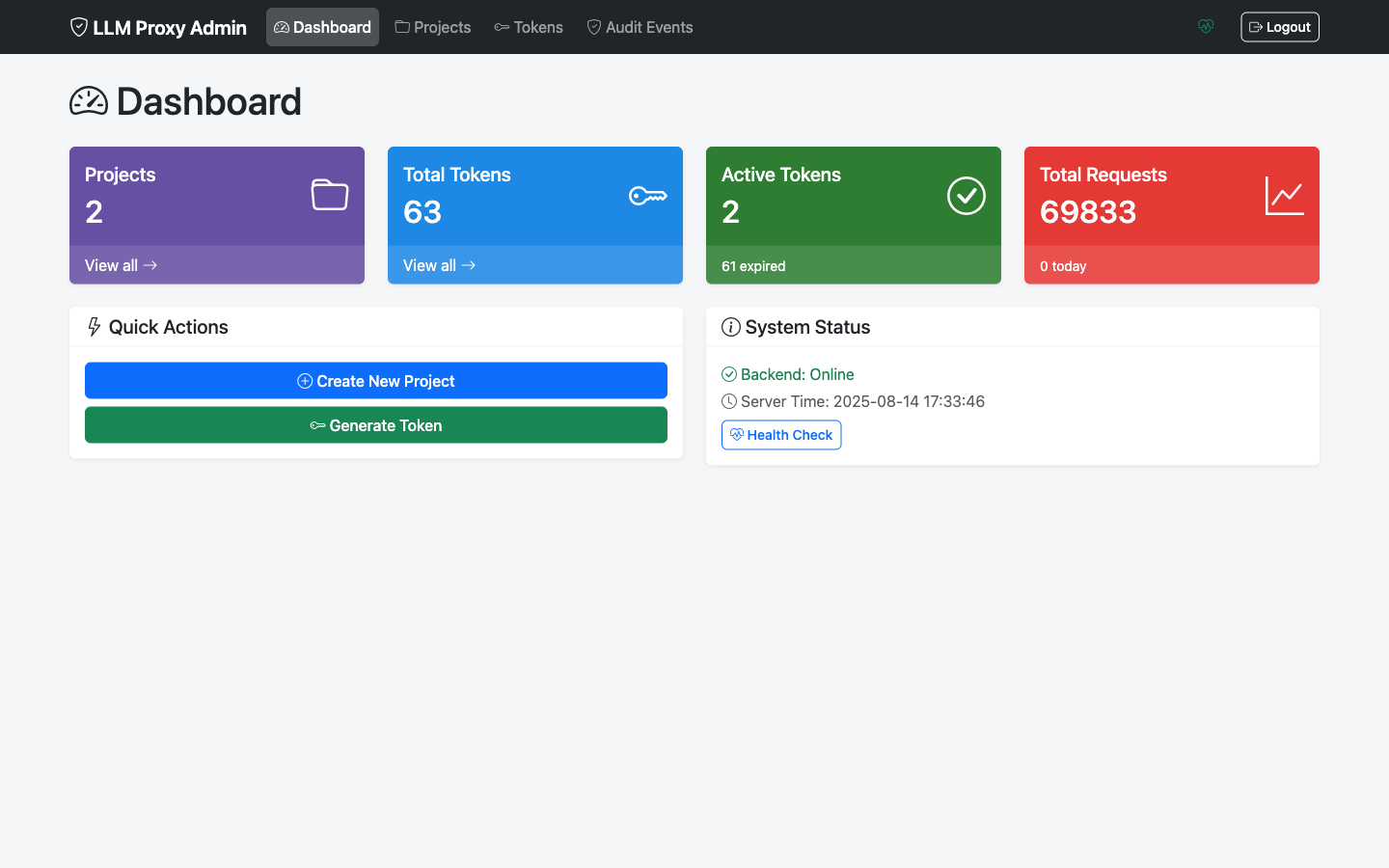
Dashboard shows:
- Total projects count
- Active tokens count
- Recent activity summary
- Quick action buttons
Projects
Projects List
View all projects with their status and quick actions.
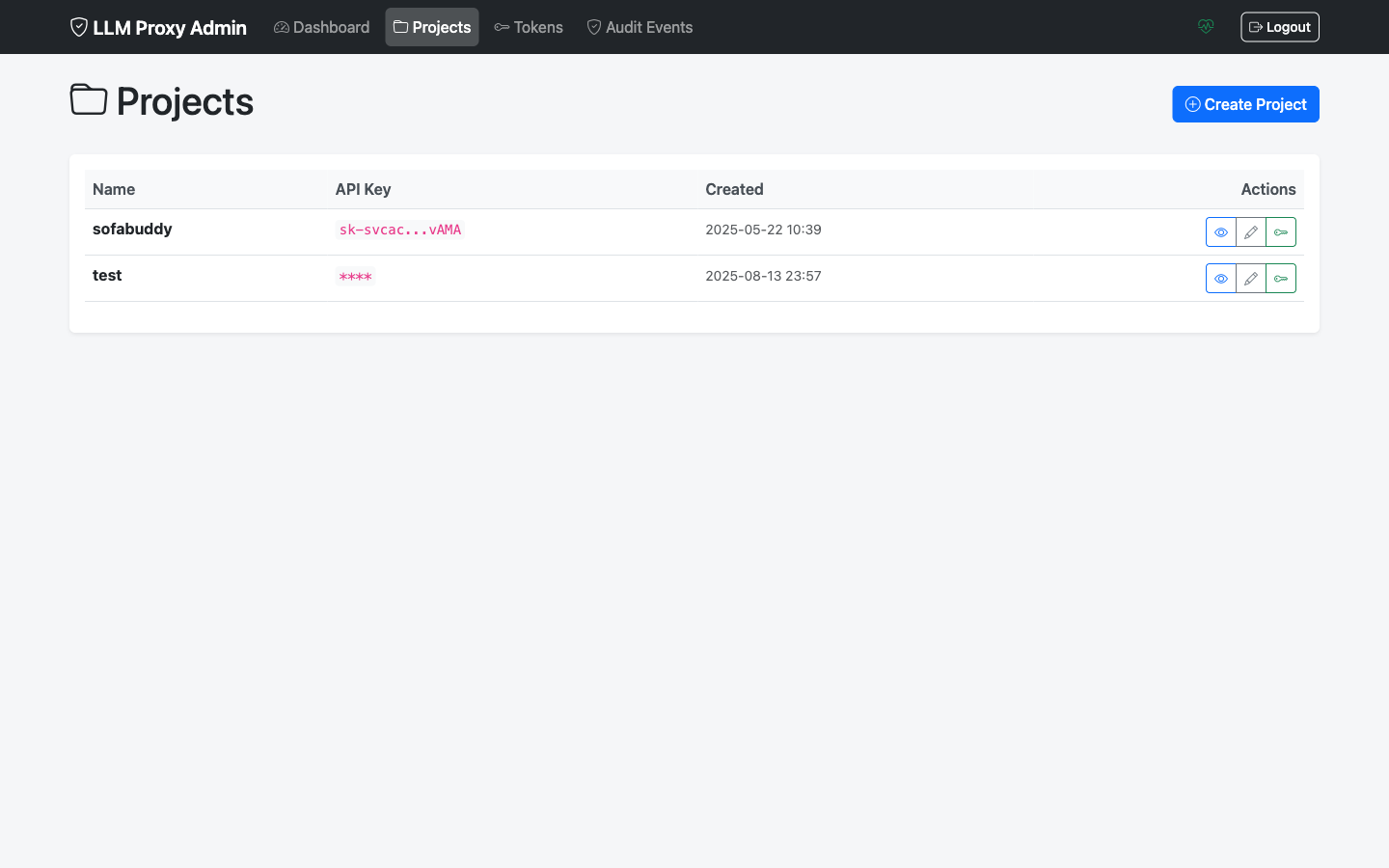
Features:
- Search and filter projects
- See active/inactive status
- Quick access to project actions
Create Project
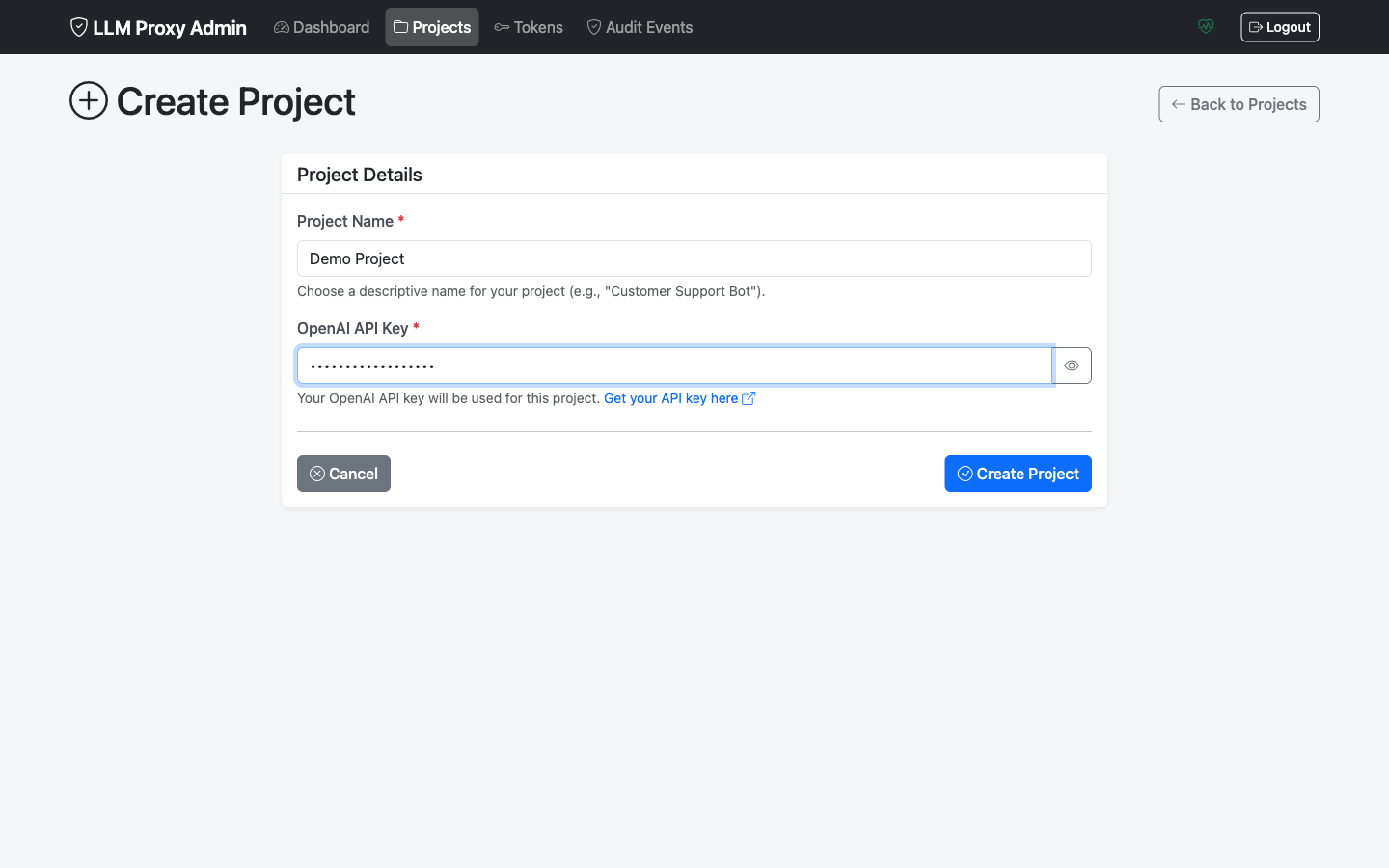
Create a new project with API key.

Required fields:
- Project name
- OpenAI API key
Create Project (Filled)
Example of a filled project creation form.
Project Details
View detailed information about a project.
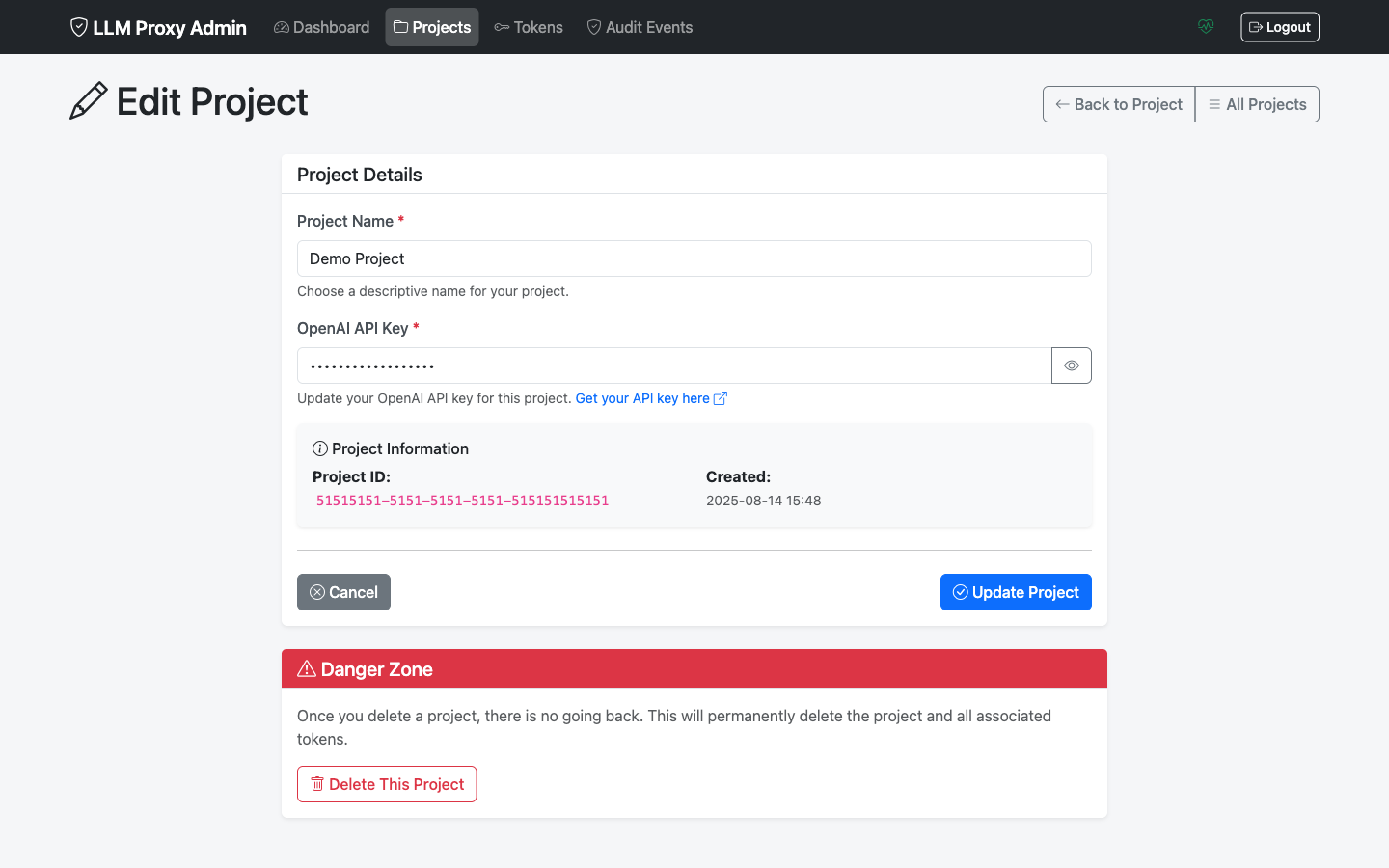
Shows:
- Project ID and name
- API key (partially masked)
- Status (Active/Inactive)
- Associated tokens
- Quick actions (Edit, Generate Token, Activate/Deactivate)
Tokens
Tokens List
View all tokens with filtering options.
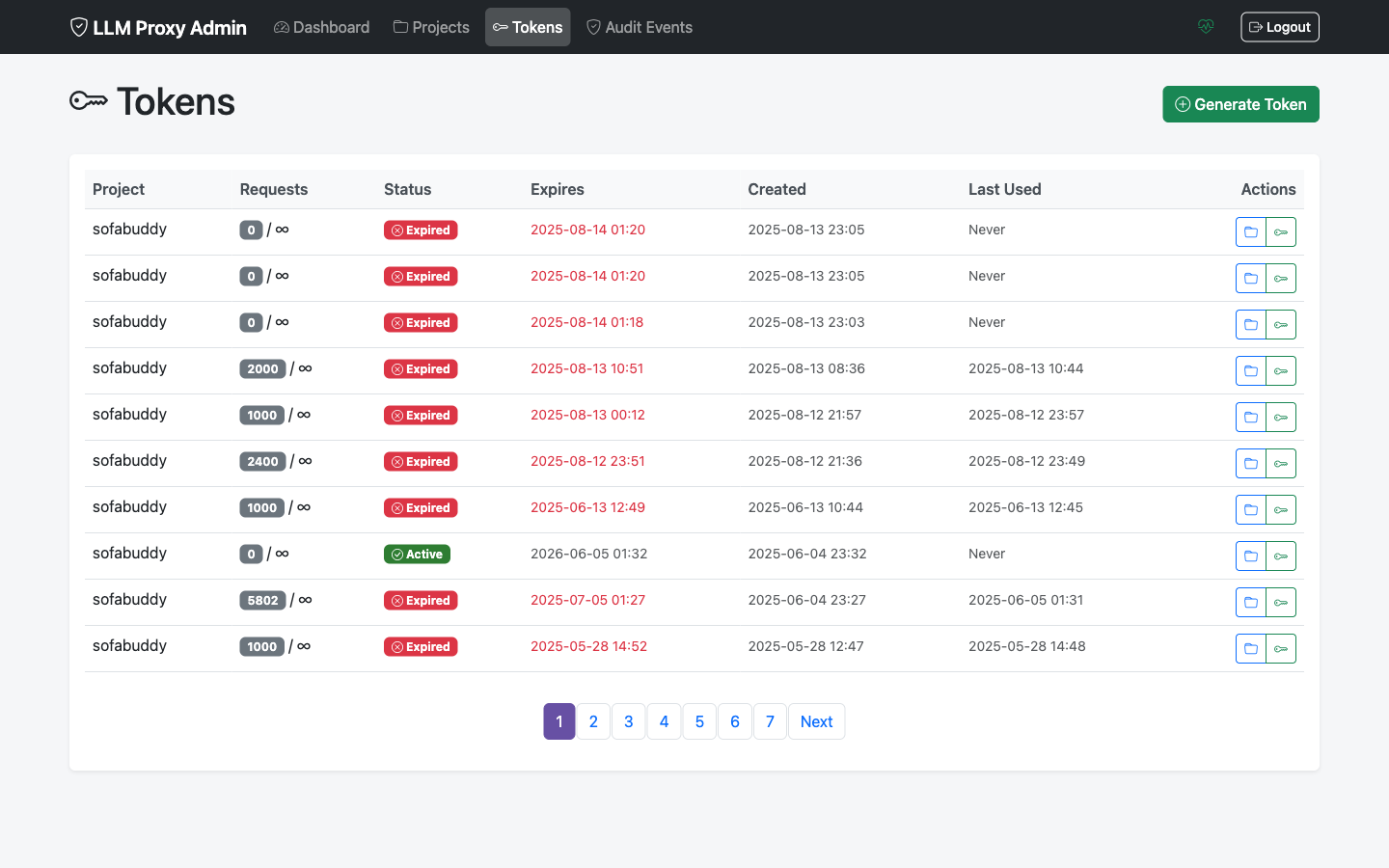
Columns:
- Token ID (truncated)
- Project
- Status
- Created/Expires dates
- Usage statistics
- Actions
Generate Token
Generate a new withering token.
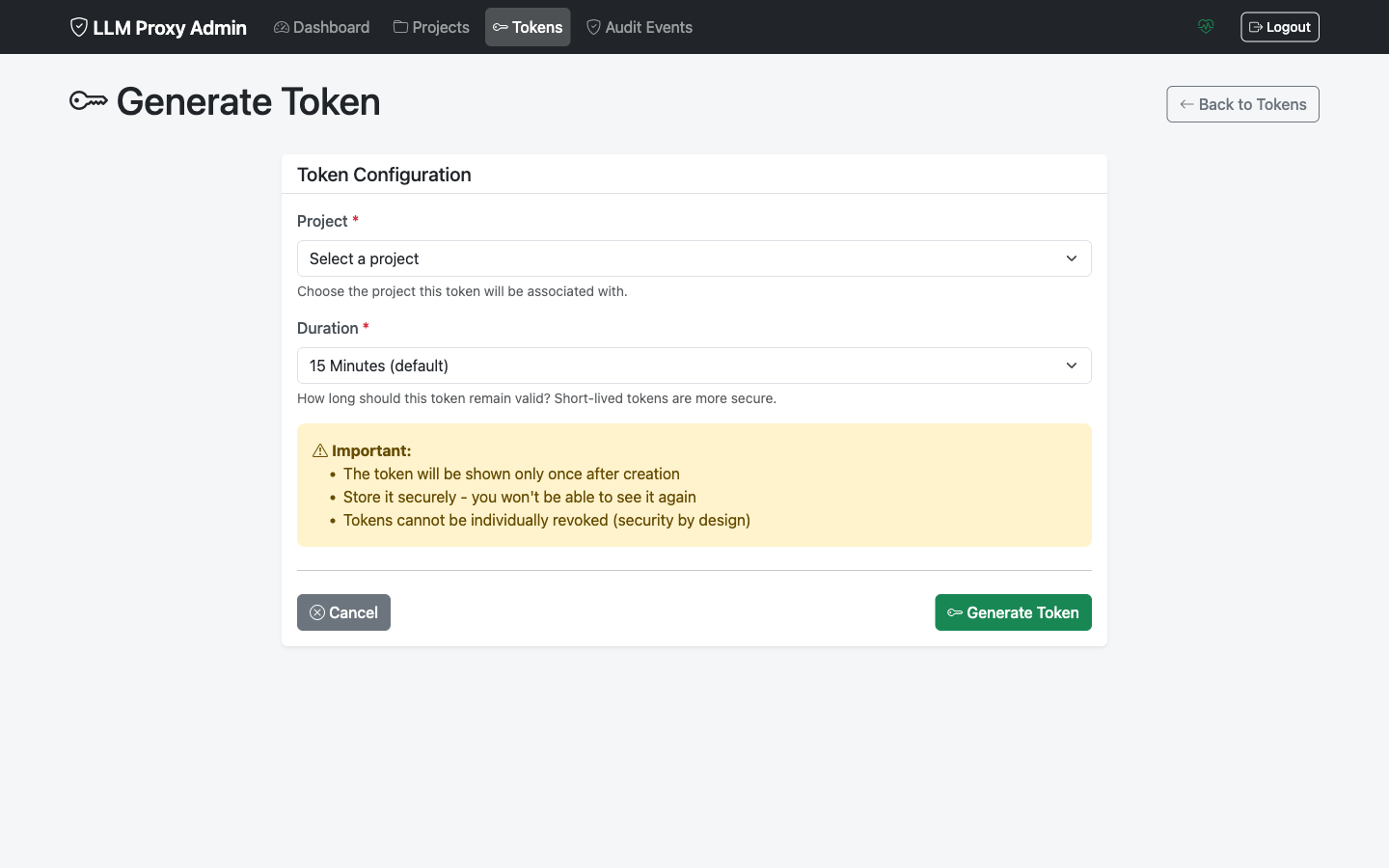
Configuration:
- Select project
- Set duration (hours)
- Set max requests (optional)
Token Created
Confirmation showing the newly created token.
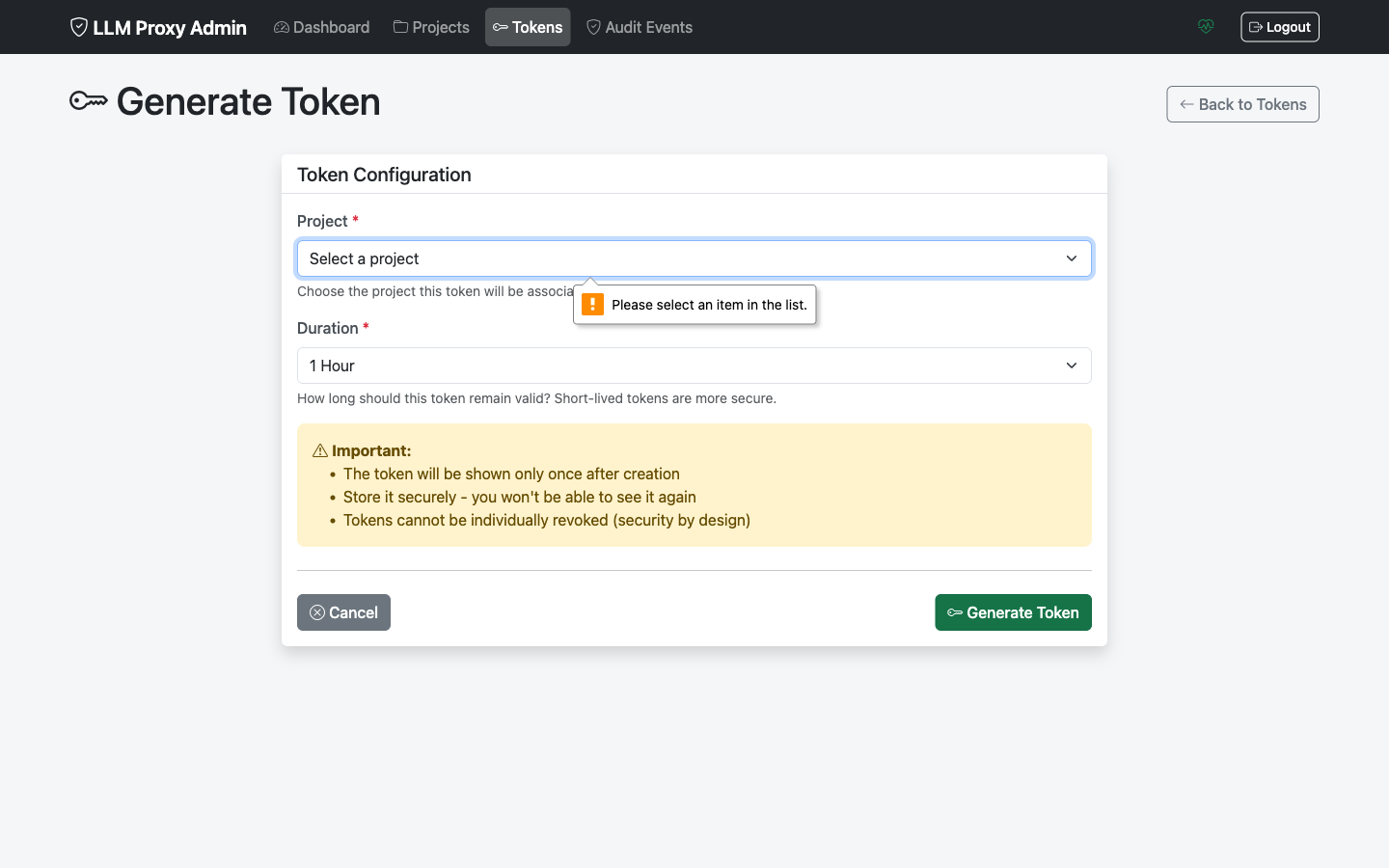
Important: Copy the token immediately! It’s only shown once.
Audit
Audit Log
Browse security audit events.
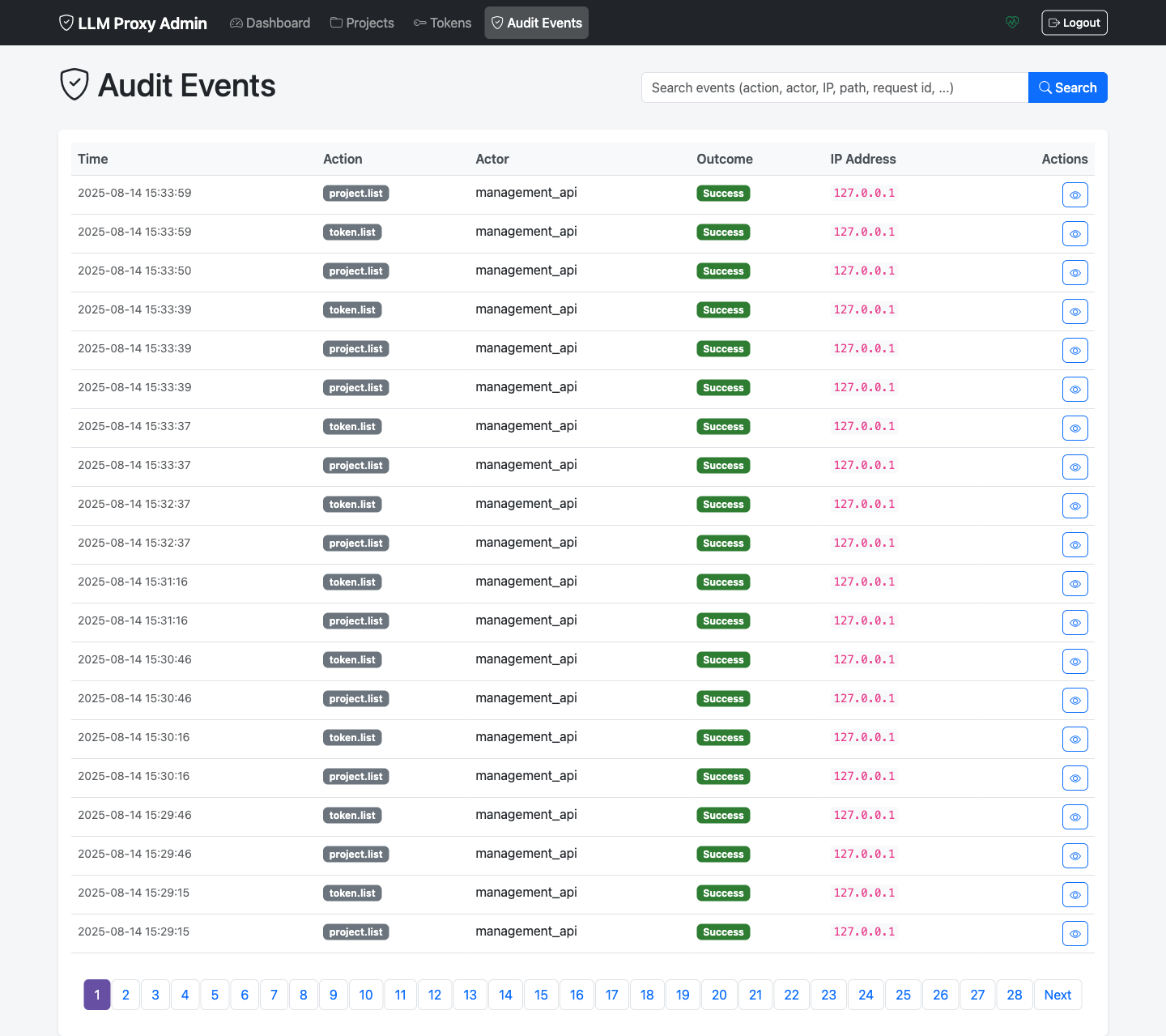
Shows:
- Event timestamp
- Action type
- Actor
- Result (success/failure)
- Associated project/token
Audit Detail
View detailed information about a specific audit event.
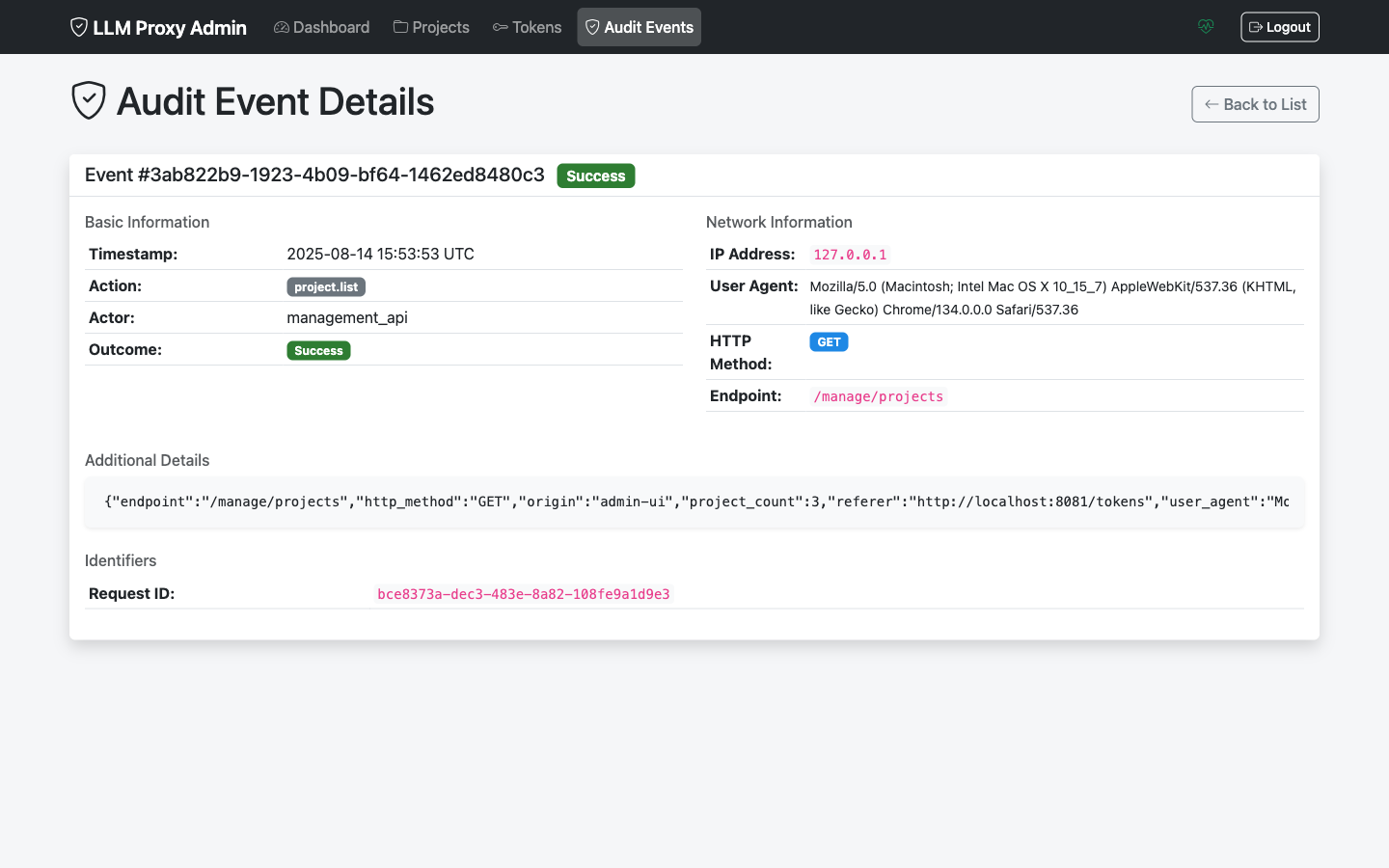
Details include:
- Full event metadata
- Request information
- Associated resources
- Client IP and user agent