Admin UI
The LLM Proxy Admin UI provides a web-based interface for managing projects, tokens, and viewing audit logs. This guide covers all Admin UI features and workflows.
Overview
The Admin UI allows you to:
- Project Management: Create, edit, activate/deactivate projects
- Token Management: Generate, view, revoke withering tokens
- Audit Logs: Browse and search security audit events
- Cache Monitoring: View per-token cache statistics
Accessing the Admin UI
Default Setup (Integrated)
When running the proxy server, the Admin UI is available at:
http://localhost:8080/admin/
Separate Admin Service
For Docker Compose deployments, run the admin as a separate service:
docker compose up admin
# Access at http://localhost:8081/
Authentication
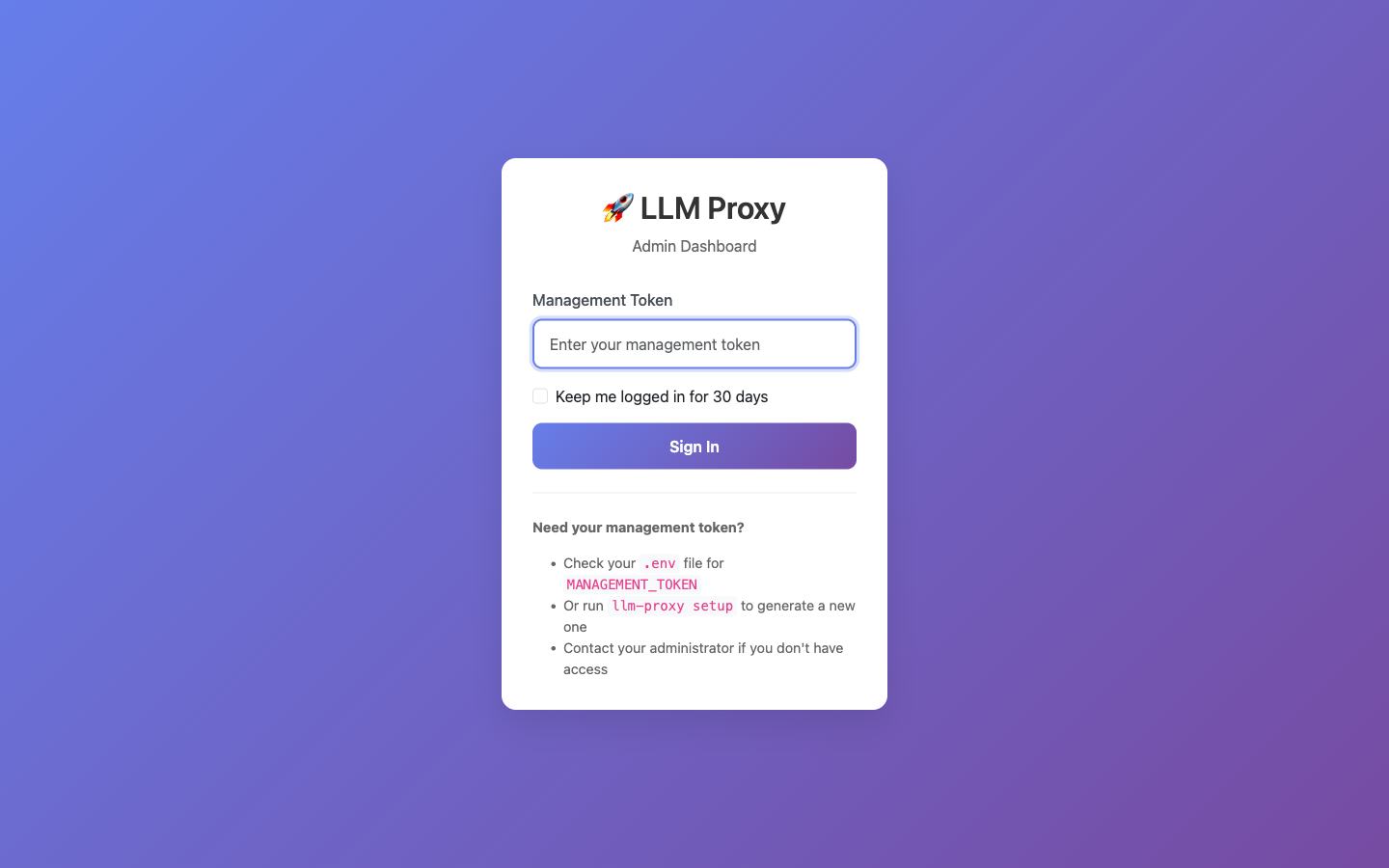
The Admin UI uses the same MANAGEMENT_TOKEN as the API. Enter your management token when prompted.
Features
Dashboard
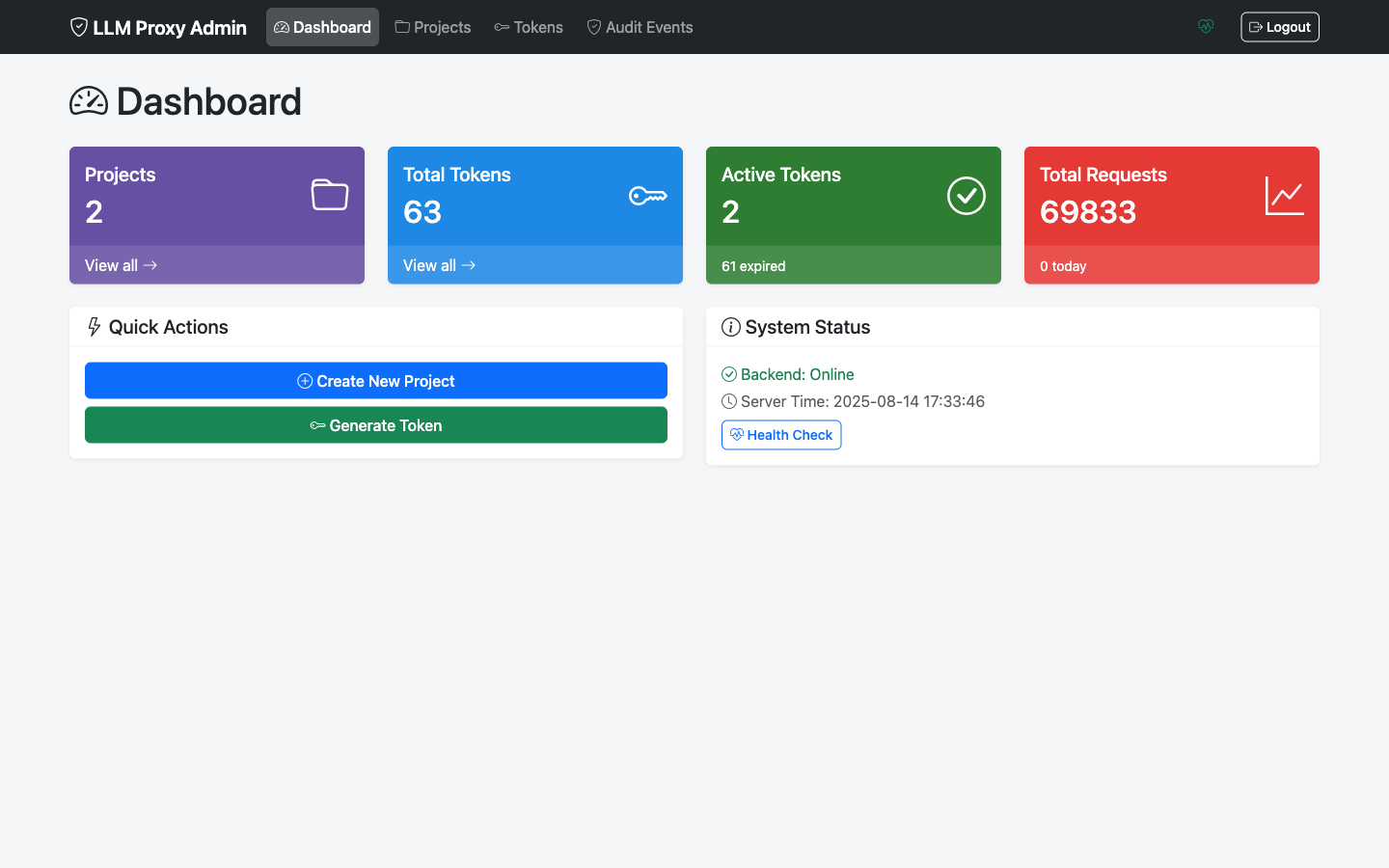
The dashboard provides an overview of your LLM Proxy deployment:
- Active projects count
- Active tokens count
- Recent activity summary
Project Management
Manage API access through projects. Each project has its own OpenAI API key and can have multiple tokens.
Key features:
- Create new projects with API keys
- Edit project name and API key
- Activate/deactivate projects
- View project details and associated tokens
See Project Management for detailed workflows.
Token Management
Generate and manage withering tokens for API access.
Key features:
- Generate tokens with custom duration and limits
- View token details and usage statistics
- Revoke individual tokens
- Bulk revoke all tokens for a project
See Token Management for detailed workflows.
Audit Logs
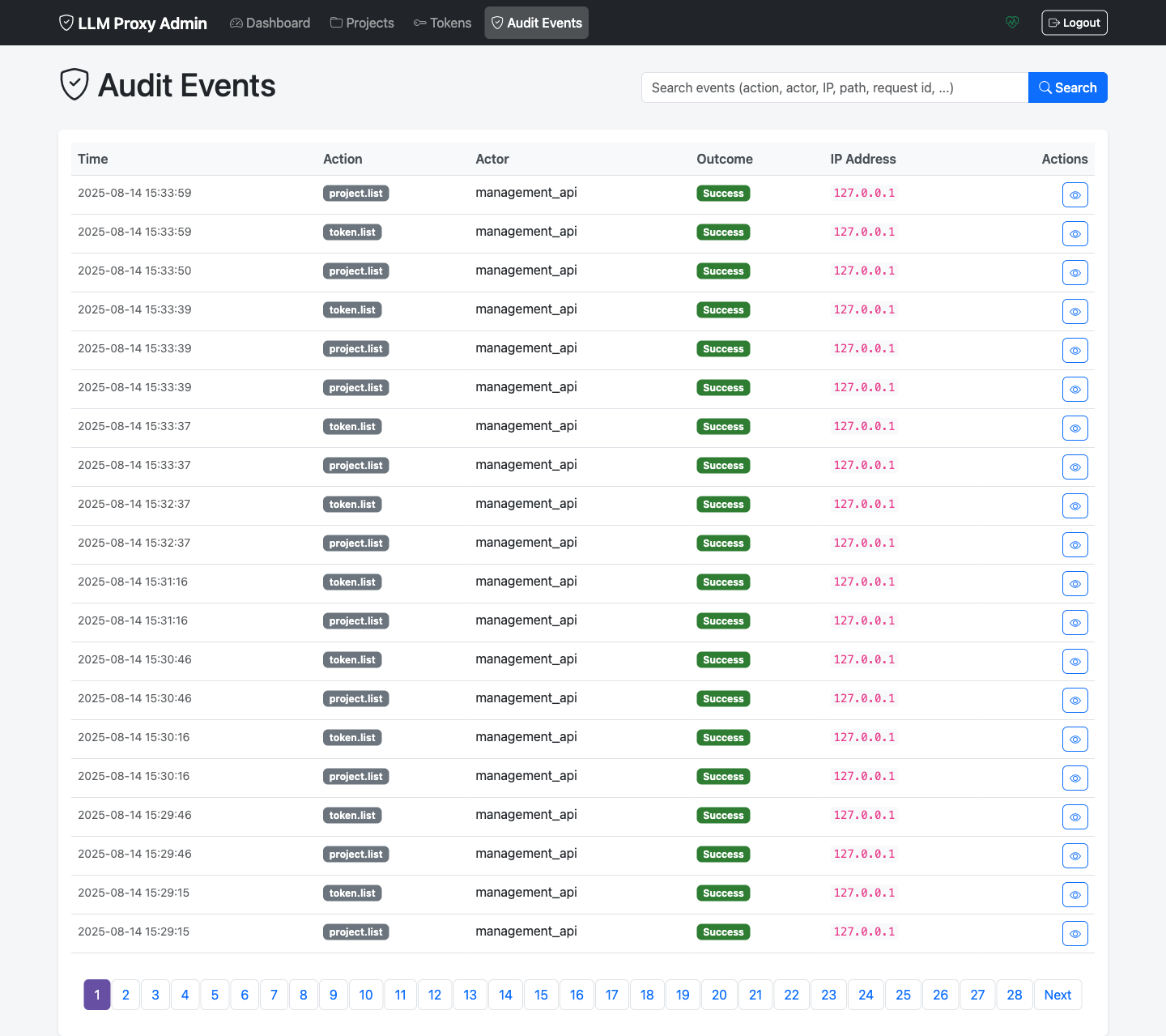
Browse security audit events for compliance and debugging.
Audited events include:
- Token creation and revocation
- Project changes
- Authentication attempts
- API access events
Quick Start Guide
- Access the Admin UI at
http://localhost:8080/admin/ - Log in with your management token
- Create a project with your OpenAI API key
- Generate a token for API access
- Use the token to proxy requests
See Admin Quickstart for step-by-step instructions.
Screenshots
For a visual tour of all Admin UI screens, see Screenshots.
Navigation
| Page | Description |
|---|---|
| Quickstart | Get started with the Admin UI |
| Project Management | Create and manage projects |
| Token Management | Generate and manage tokens |
| Screenshots | Visual tour of all screens |
Related Documentation
- Token Management Guide - Complete token lifecycle documentation
- Configuration Reference - Admin UI configuration options
- Security Best Practices - Audit logging and security